Famarex - Facebook Marketing AI Expert
Famarex is a Facebook Marketing AI Assistant developed by Superb AI, designed to support you comprehensively in all Facebook marketing activities – from strategy planning, content creation, publishing to performance analysis and optimization.
With the ability to understand business goals, think strategically, and make data-driven decisions, Famarex is not just a support tool but an in-depth AI partner for Facebook Marketing.
👉 You can work with Agent Famarex in 2 locations:
-
Agents → Famarex (Facebook Marketing Expert)
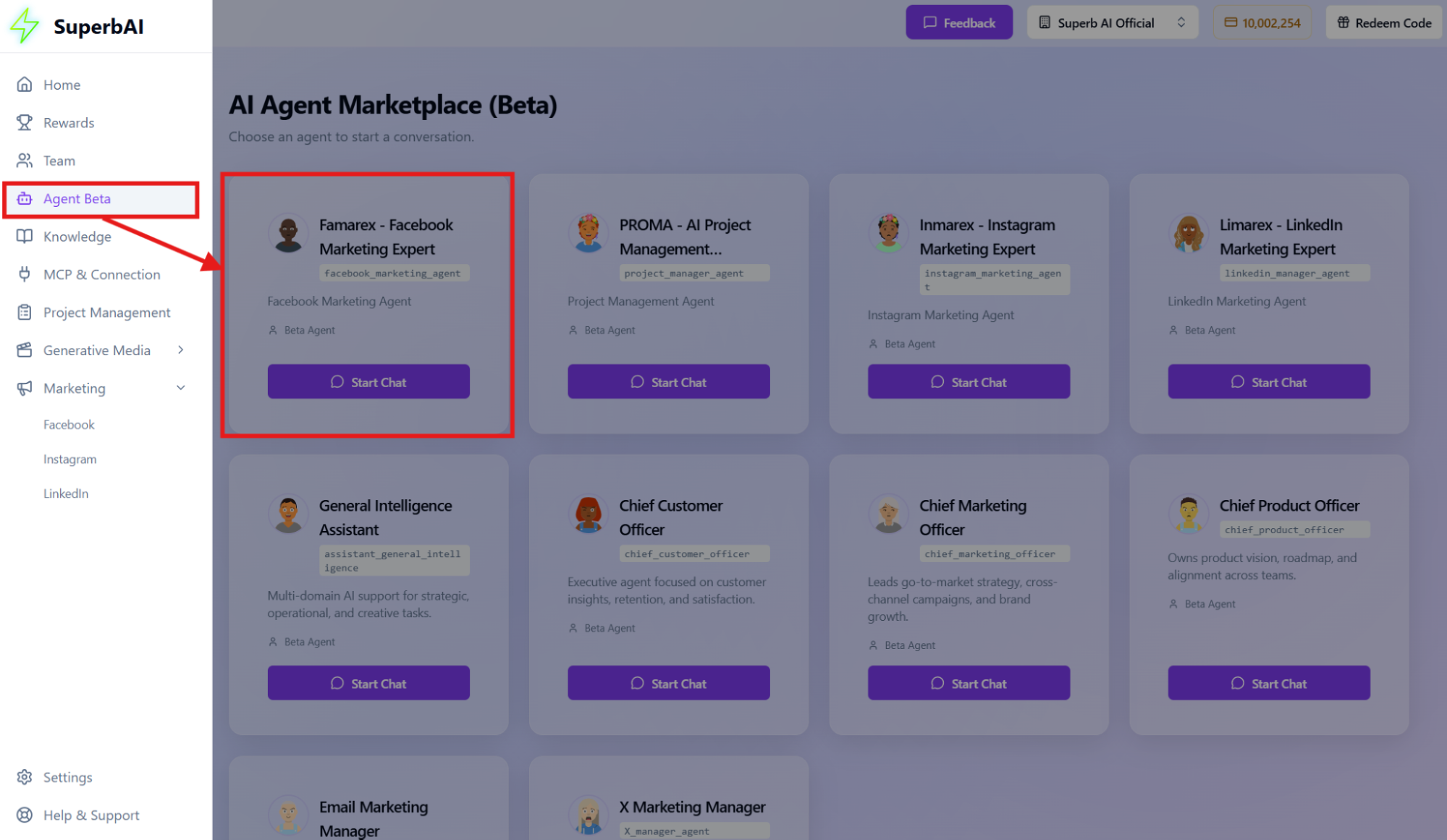 Famarex Interface
 -
Marketing → Facebook → Chatbot Agent Famarex at the bottom right corner
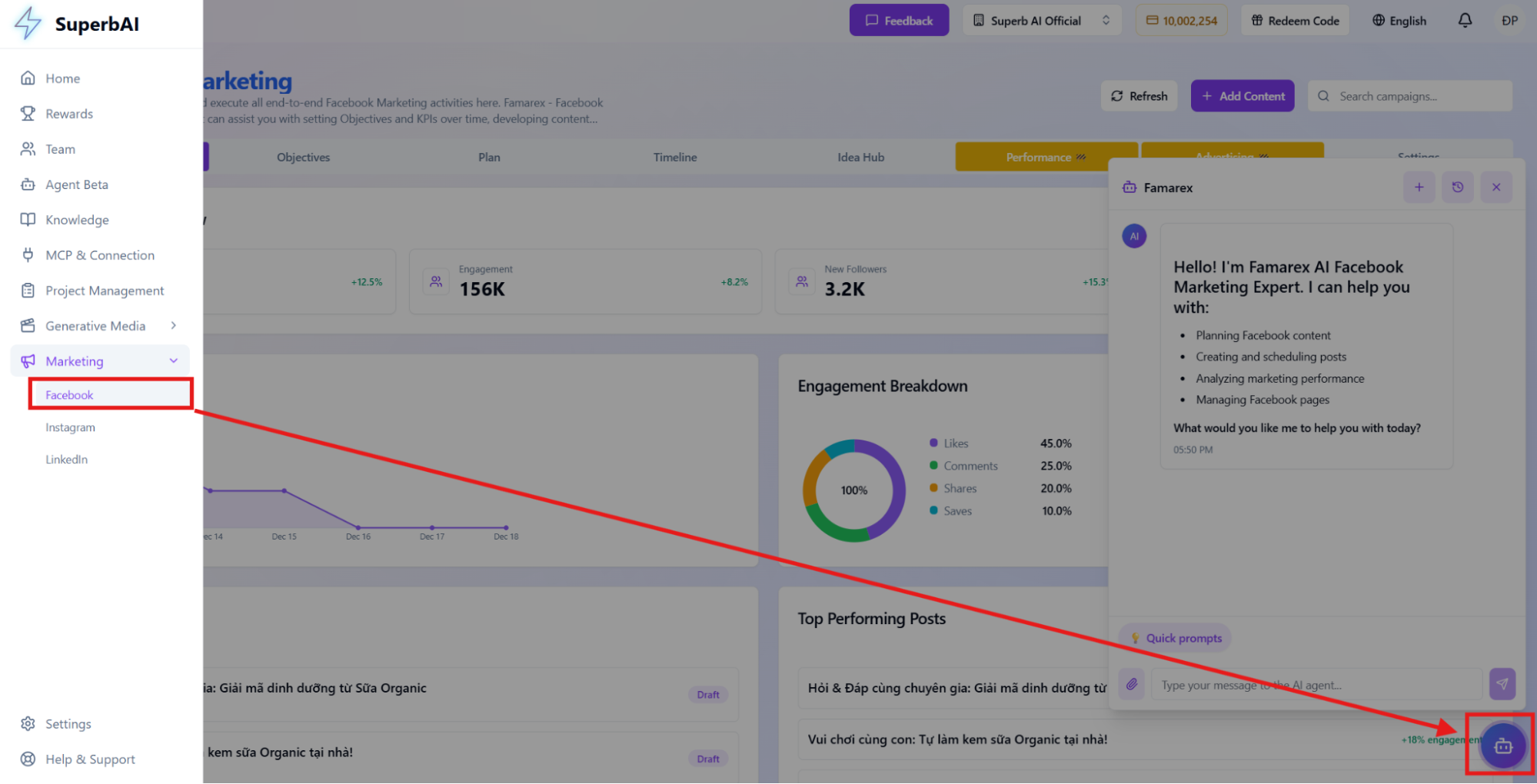 Chatbot Interface
Key Functions
1. Comprehensive Facebook Marketing Planning
Agent Famarex helps you build a detailed Facebook marketing plan with clear direction:
• Define Business Goals: Increase brand awareness, engagement, new followers, or drive sales.
• Set Metrics: Reach, Engagement, New Followers, New Follower/Reach ratio by stage (day/week/month/quarter/year).
• Content Calendar: Plan topics, formats (text, image, video), suggested posting times, and goals for each post.
2. Content & Visual Creation
Famarex supports creating engaging content that fits insights and target audiences:
• Writing: Draft complete Facebook posts with natural tone and clear structure.
• Visual Prompts: Propose and create image/video prompts matching post content and brand message.
3. Management & Publishing
Agent Famarex supports effective content management and posting:
• Publishing: Post directly or schedule posts for desired times.
• Readiness Check: Review content, visuals, and goals before publishing to minimize errors.
4. Performance Analysis & Recommendations
To keep campaigns optimized, Famarex will:
• Track Metrics: Analyze impressions, reach, and engagement.
• Evaluate Content: Identify high-performing content and underperforming ones.
• Propose Improvements: Adjust future content plans based on real data.
5. Campaign Optimization & Sustainable Growth
The ultimate goal of Agent Famarex is to help you:
• Increase brand awareness on Facebook.
• Optimize Organic and Ads campaigns.
• Increase revenue and profit.
• Build long-term relationships through personalized marketing strategies.
Ready-to-Use Prompt Templates
Beyond basic functions, Agent Famarex offers a built-in library of pre-designed prompts for various industries and goals.
How to use:
- Select Template
- Click Use on the desired prompt
- Content is automatically filled into the chat
➡️ Helps you start quickly, accurately, and saves brainstorming time.
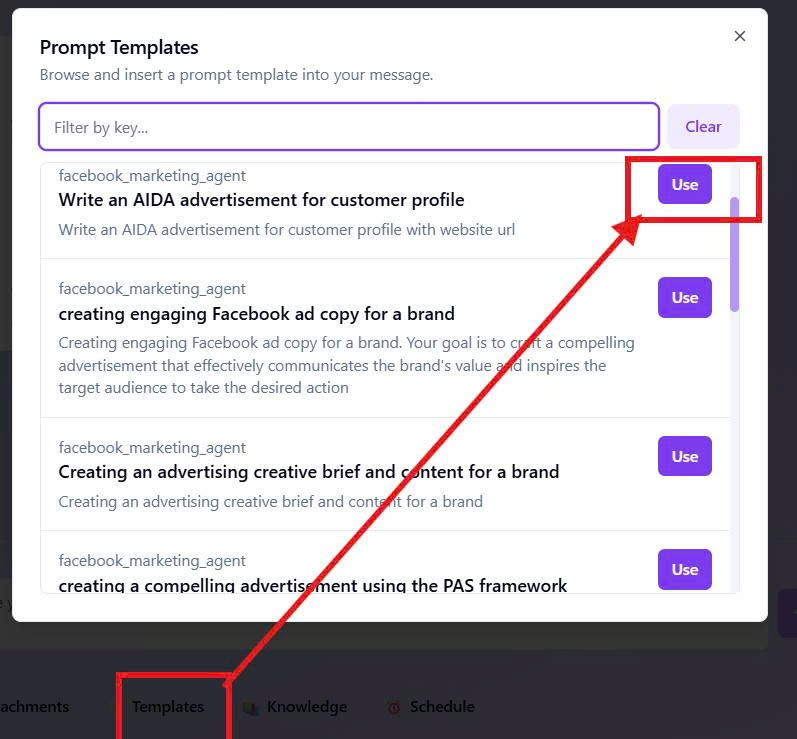 Famarex Templates
Built-in Dashboard
The Facebook Marketing Dashboard is a centralized hub for visualizing metrics and working with Agent Famarex.
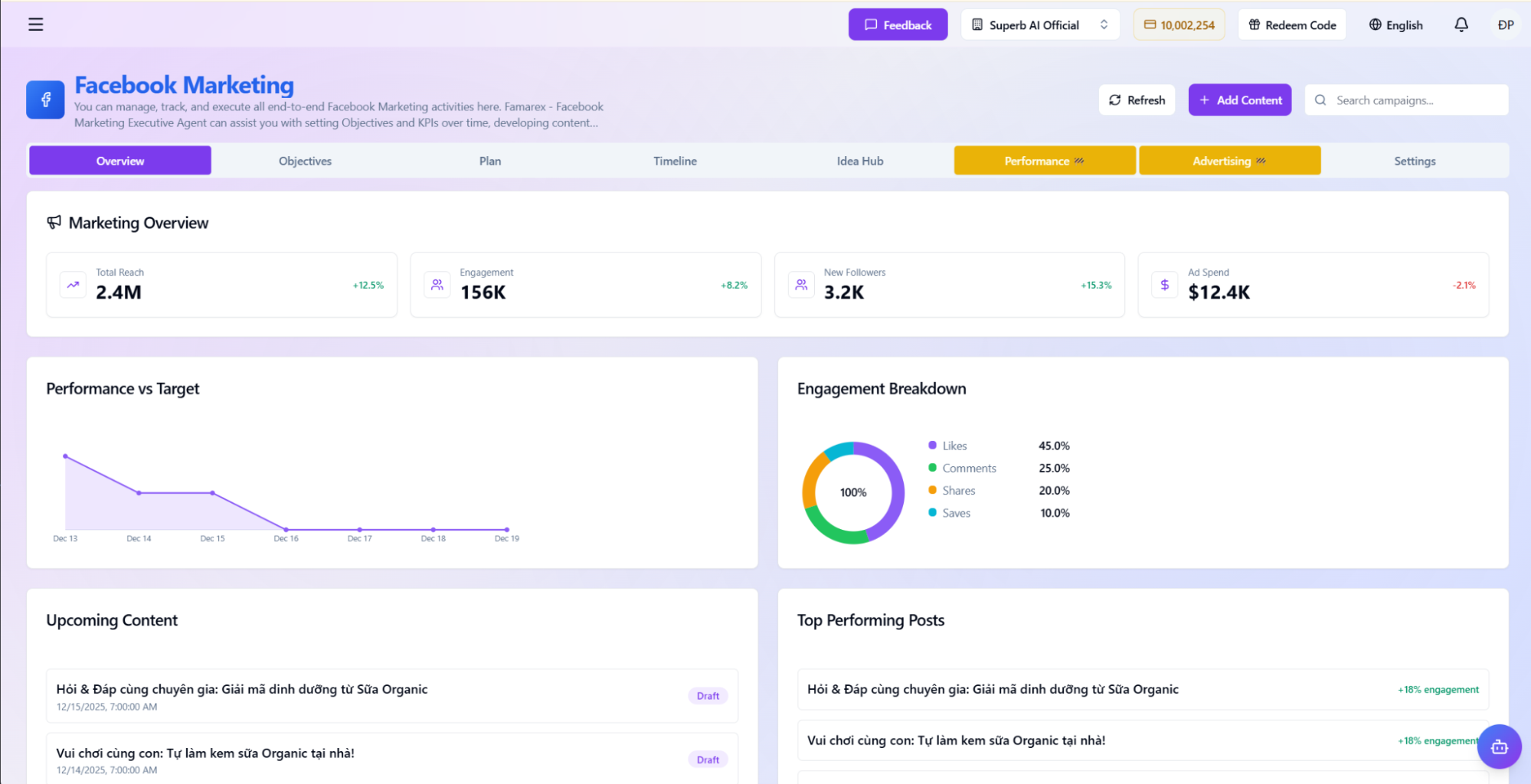 Facebook Dashboard
Detailed Modules
• Objectives: Set and manage Facebook Marketing goals over time, including business goals, metrics (Reach, Engagement, New Followers), and status.
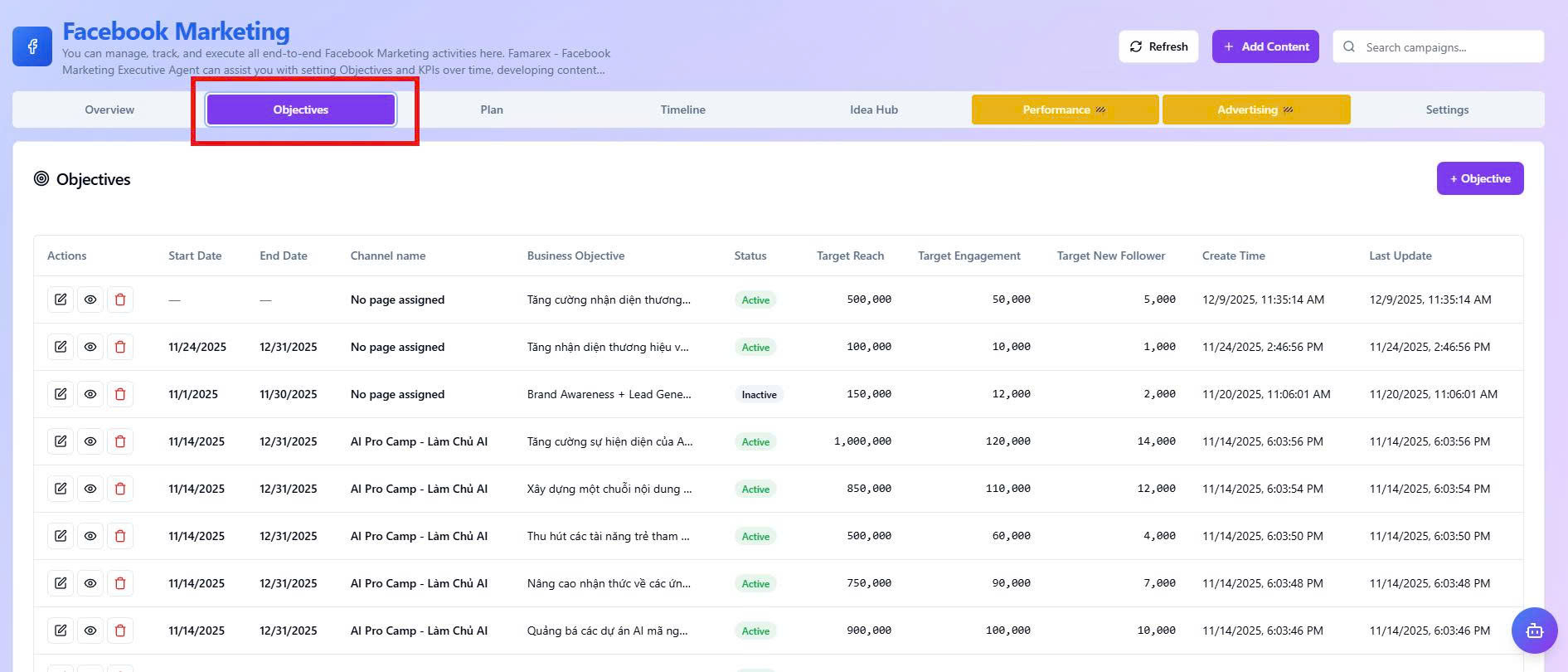 Objectives
• Plan: Manage content calendars. Filter by channel, status, type, goal, and time; monitor deadlines and handle due/overdue posts.
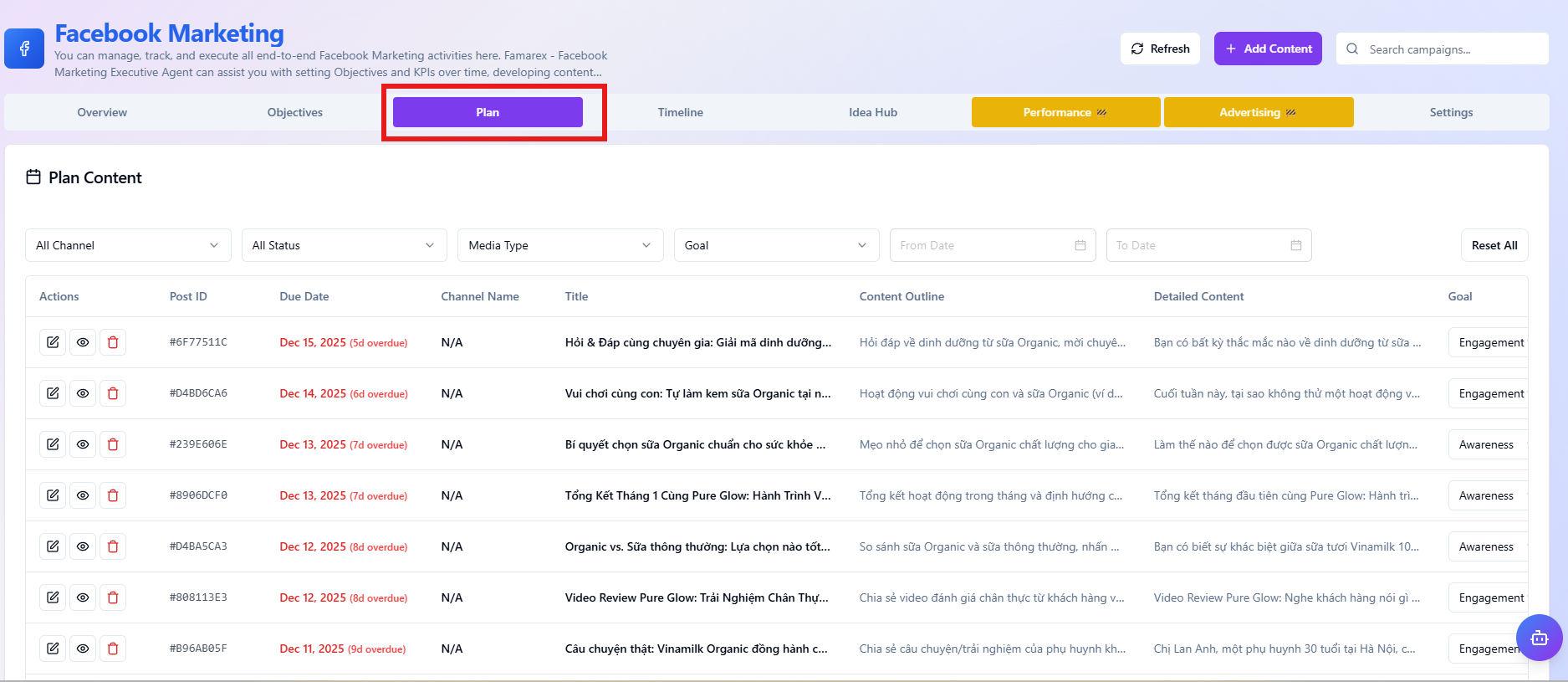 Planning
• Timeline: Visual Gantt charts to track campaign progress on a unified timeline. Control execution time, overlapping tasks, and deadlines.
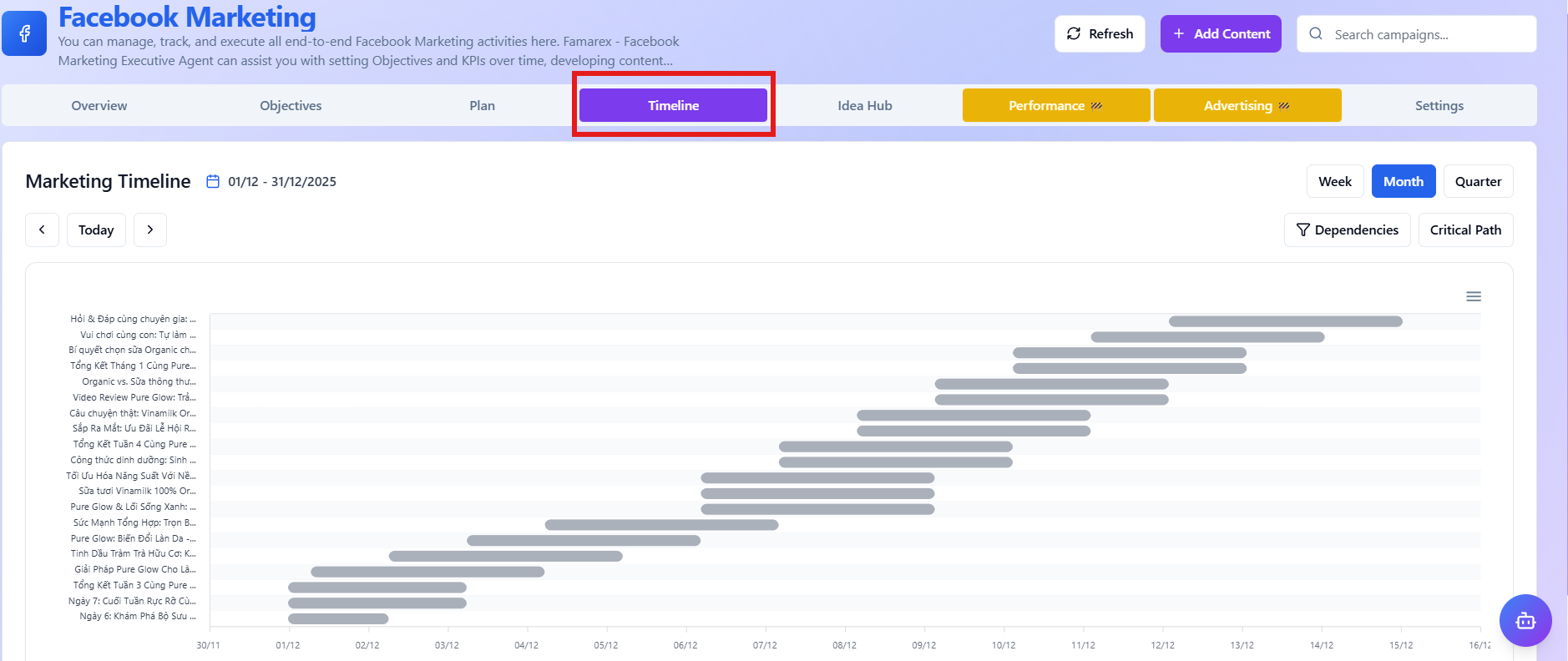 Timeline
• Ideas: A creative library categorized by industry. Explore ad templates and suggestions to kickstart your next campaign.
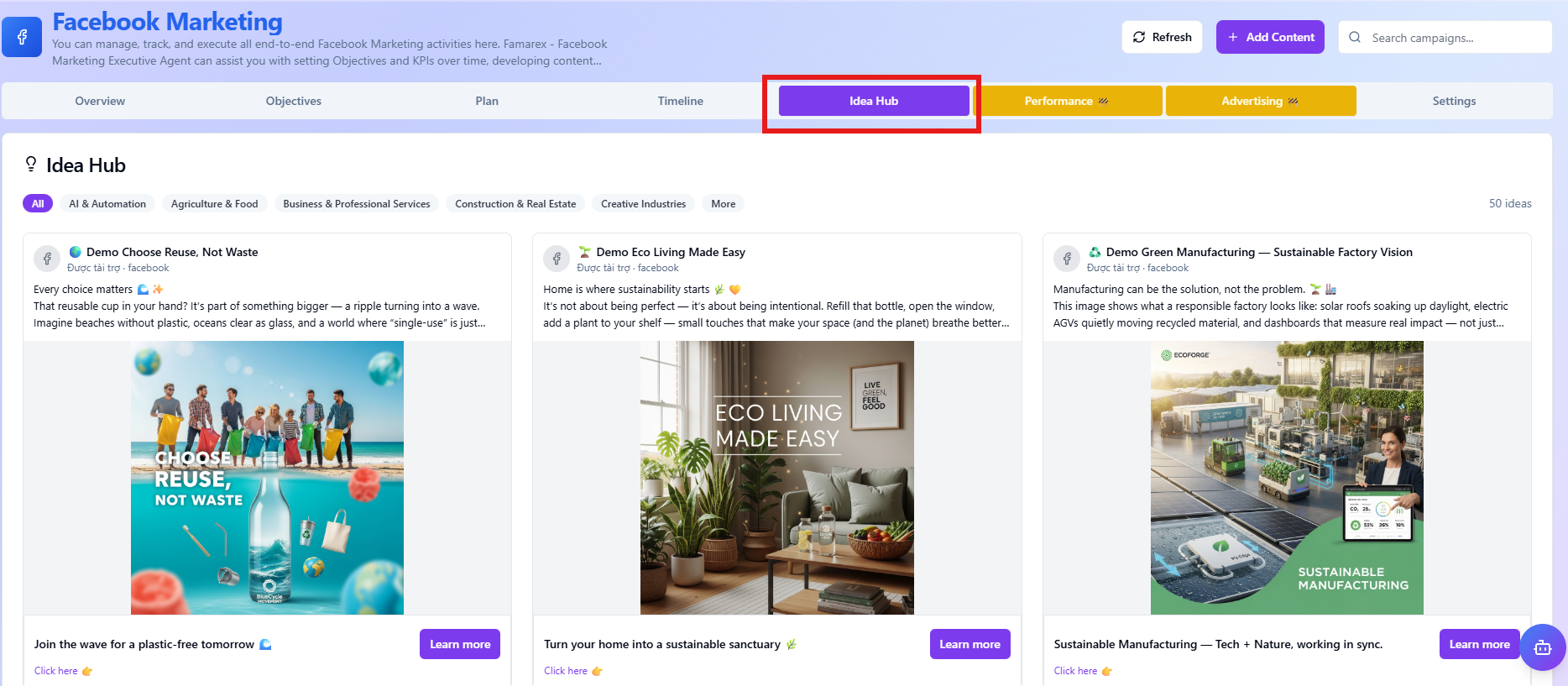 Idea Hub
• Settings: Set up platform integrations to sync campaign data. Connect directly with Facebook Marketing to manage ads and content on a single system.
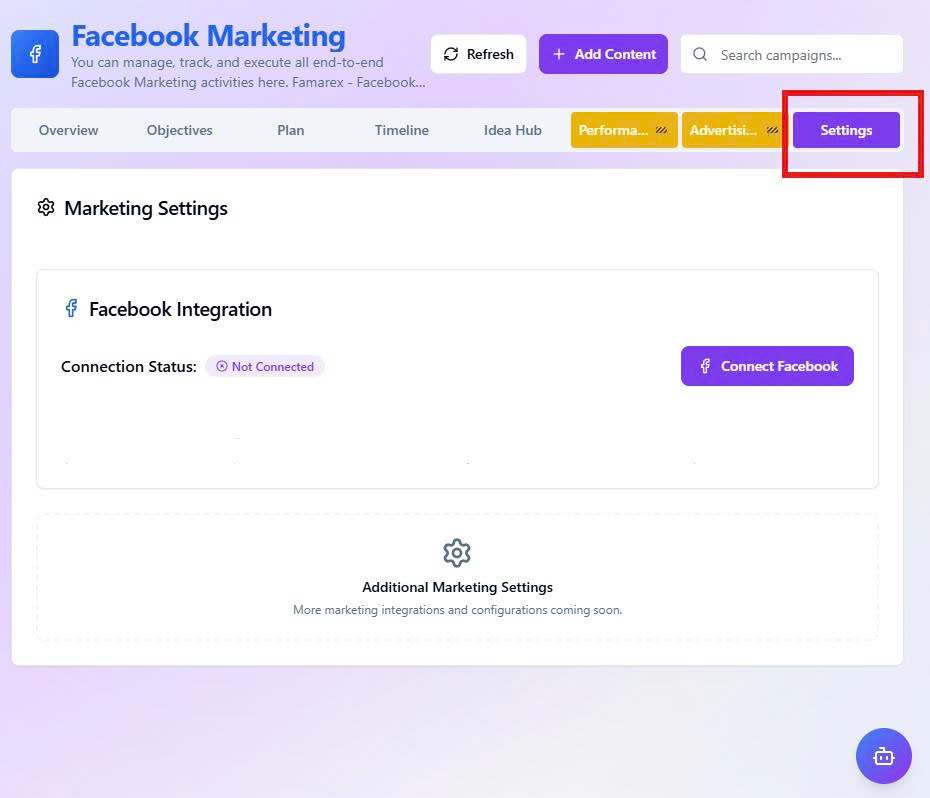 Settings
Connect Facebook via MCP
The system allows connecting and syncing Facebook via MCP, enabling direct interaction and data management from Facebook Page.
Through this connection, Famarex can:
• Post to Facebook Page (Feed, image, video) directly or on schedule.
• Retrieve Page info (name, avatar, description, followers).
• Collect performance data (reach, engagement, comments, shares).
• Automatically fetch and reply to comments.
• Manage Page and user interaction centrally.
• Sync data for analysis and reporting.
Connection Guide
Method 1: Go to MCP & Connection -> Select Facebook -> Connect
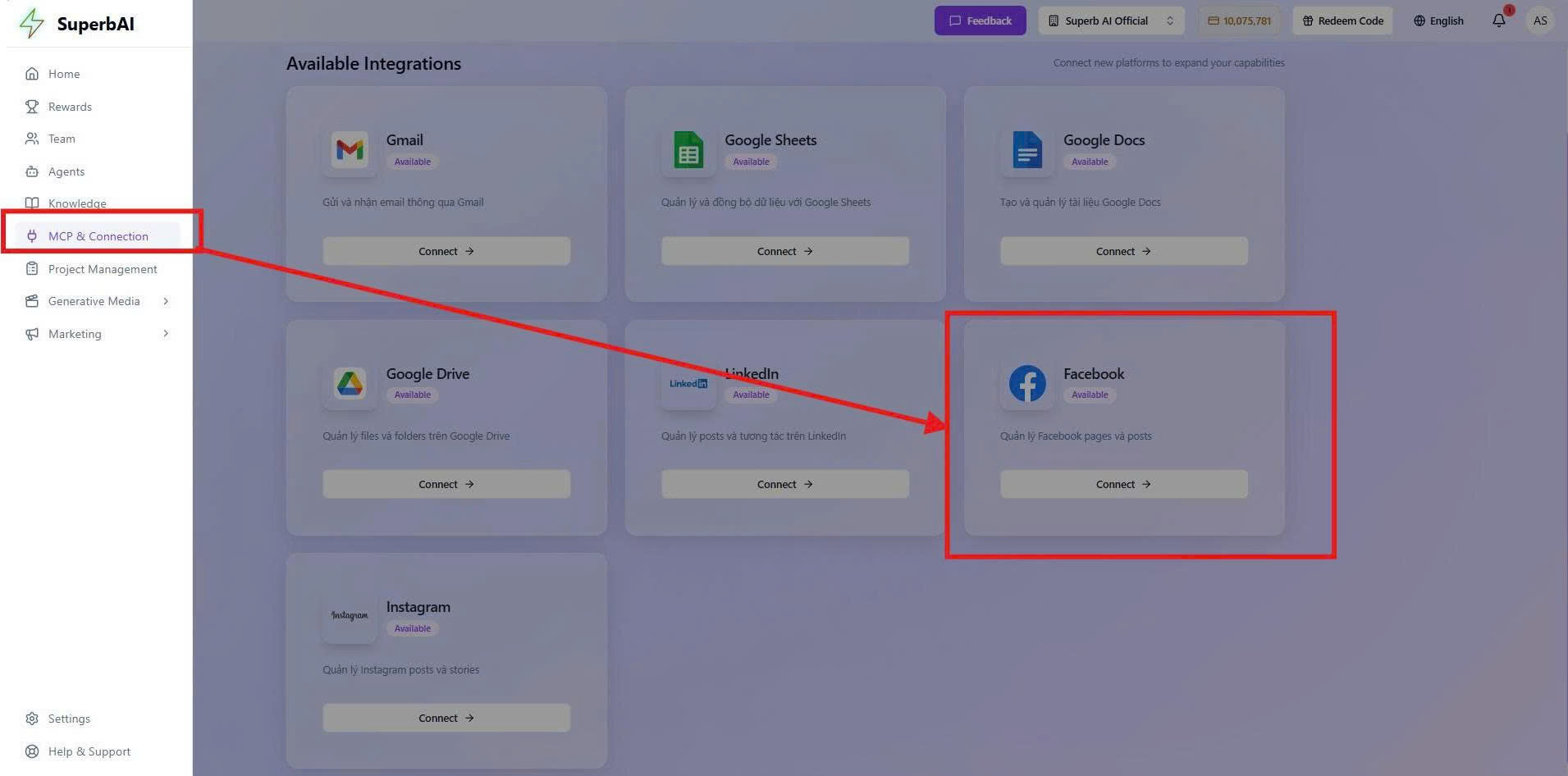 MCP Connection 1
Method 2: Go to Settings in Facebook Marketing -> Select Connect Facebook
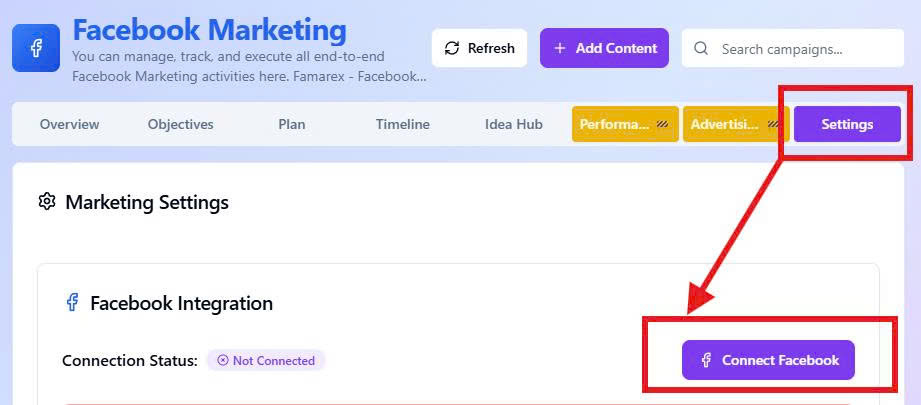 MCP Connection 2